

Key Features
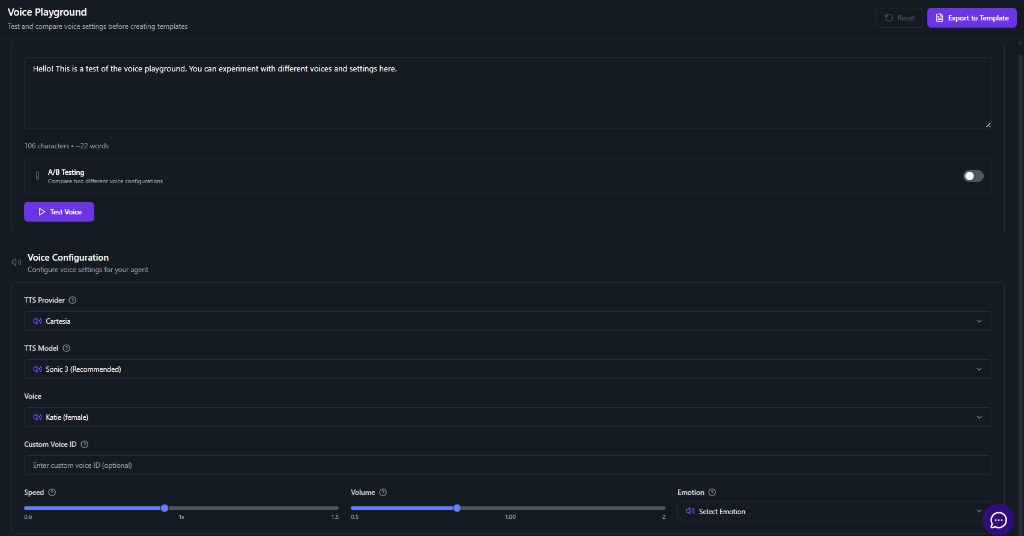
The playground provides a comprehensive suite of controls to simulate and refine your voice agent’s output.1. Interactive Test Area
At the top of the playground is the text input area. Here, you can type any phrase or sentence you want your agent to say. This is the quickest way to validate pronunciation, pacing, and overall audio quality.- Real-time Feedback: Type your text and click Test Voice to generate audio instantly.
- Character Count: Keep track of your input length to estimate costs and latency.
2. A/B Testing
Toggle the A/B Testing switch to compare two different voice configurations side-by-side. This is invaluable when deciding between two different providers (e.g., Cartesia vs. ElevenLabs) or models.- Setup Configuration A: Configure your primary choice.
- Setup Configuration B: Configure an alternative set of settings.
- Compare: Run the same text through both to hear the difference immediately.
3. Voice Configuration
This section gives you granular control over the voice engine.- TTS Provider: Select from top-tier providers like Cartesia, ElevenLabs, PlayHT, and more.
- TTS Model: Choose the specific model version (e.g., Sonic 3.5 (Recommended) for low latency).
- Voice: Pick from a library of pre-made high-quality voices (e.g., “Katie (female)”).
- Custom Voice ID: If you have a cloned voice, enter its ID here to test it.
4. Audio Properties
Fine-tune the delivery of the speech to match the context of your application.- Speed: Adjust the speaking rate. Lower text for more serious notifications, faster for energetic greetings.
- Volume: Set the base loudness of the output.
- Emotion: (If supported by the model) Select specific emotional tones such as “Happy”, “Sad”, “Surprised”, or “Neutral”.