

Enabling Support Tickets
To allow your chat agent to create support tickets, you must enable the Support Ticket Request tool in your project settings.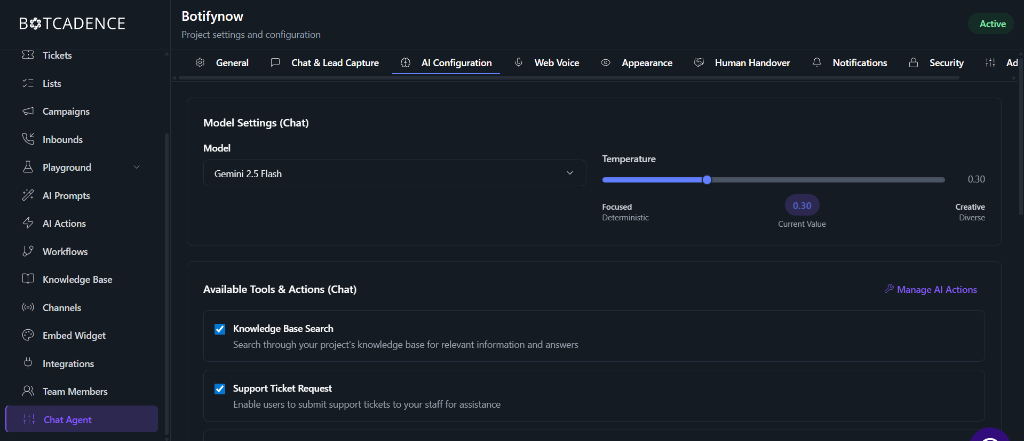
Access Chat Settings
Navigate to the Chat Agent section from your project sidebar and click on Chat Settings.
Enable Support Ticket Request
Scroll down to the Available Tools & Actions (Chat) section. Find the Support Ticket Request option and check its box.
Enabling this tool allows the AI agent to recognize when a user needs to file a formal complaint or request human assistance, and it will collect the necessary details (Name, Email, Issue Description) to create a ticket.
Viewing Tickets
Once a user submits a ticket through the chat agent, it will appear in your dashboard’s Tickets section.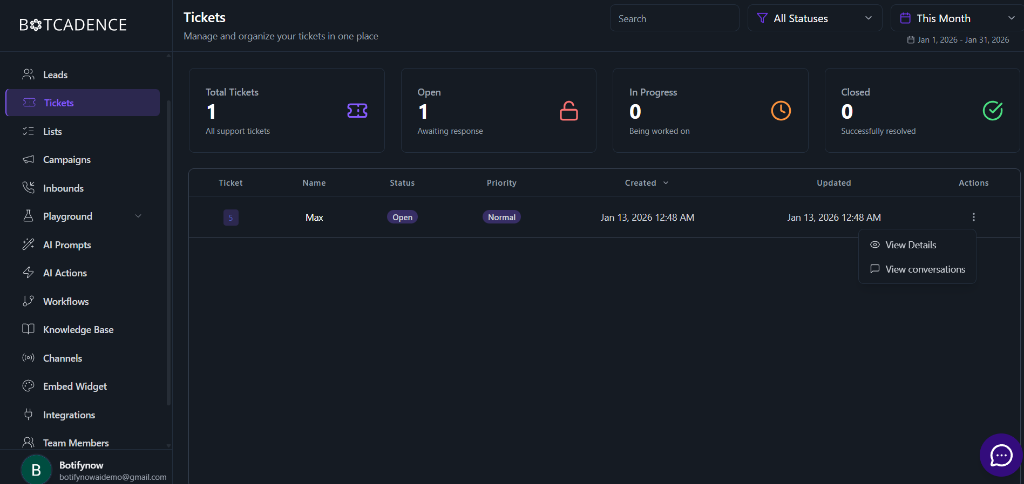
Navigate to Tickets
Click on the Tickets option in the main sidebar. This page provides an overview of all support requests.You can view high-level metrics at the top, including:
- Total Tickets: All-time ticket count.
- Open: Tickets currently awaiting a response.
- In Progress: Tickets that are actively being worked on.
- Closed: Successfully resolved tickets.
Filter and Search
Use the search bar to find tickets by customer name or ID. You can also filter the list by Status (Open, In Progress, Closed) or Priority (Normal, High, etc.) and time range.
View Ticket Details
To see the full details of a specific ticket, find it in the list and click the Actions menu (three dots) on the right side. Select View Details.Alternatively, you can select View conversations to see the chat history that led to the ticket creation, providing valuable context for the issue.
Resolving Tickets
The ticket details modal allows you to manage the lifecycle of a support request.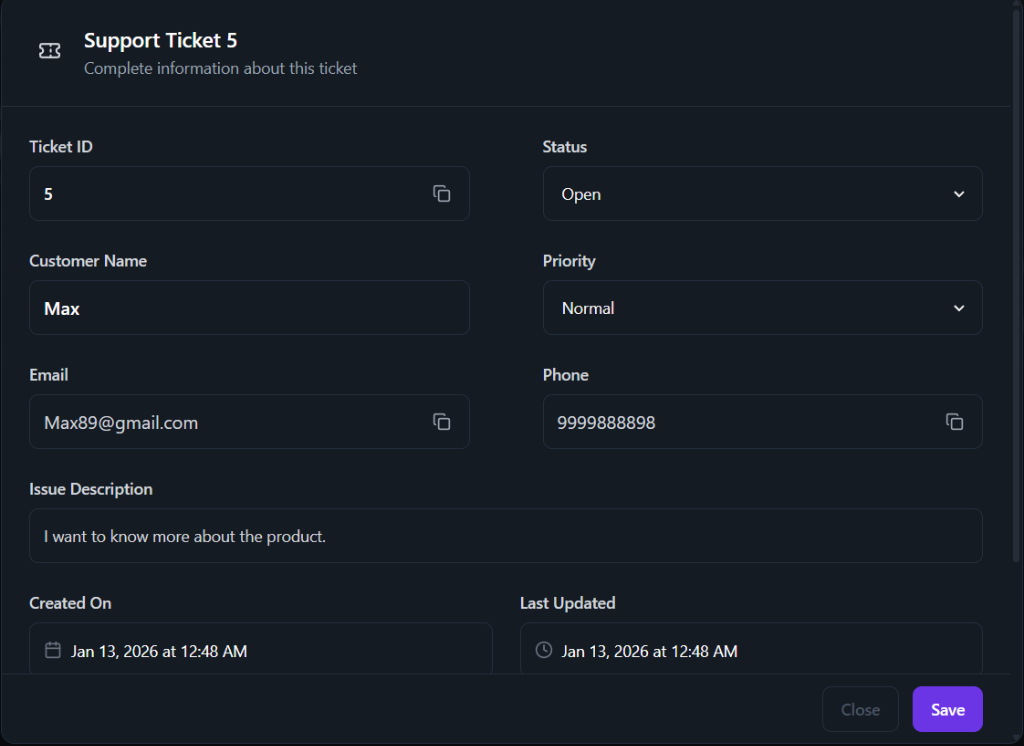
Review Information
In the Support Ticket modal, you can review the customer’s contact information (Name, Email, Phone) and the Issue Description provided by the user.
Update Status
As you work on the issue, you can update the Status dropdown:
- Change it to In Progress while investigating.
- Change it to Closed once the issue has been resolved.
Adjust Priority
If the issue is urgent, you can update the Priority (e.g., Normal, High) to help your team triage effectively.