> ## Documentation Index
> Fetch the complete documentation index at: https://botcadence-a5dbc408.mintlify.site/llms.txt
> Use this file to discover all available pages before exploring further.
# Create Campaign
> Set up a new voice call campaign.
Follow these steps to create a new outbound voice campaign.
## 1. Campaign Setup
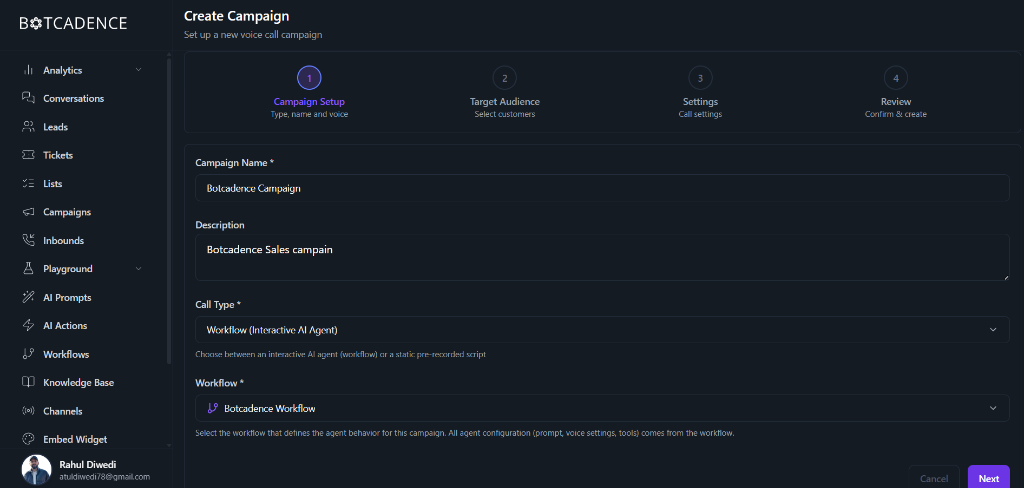
In the **Campaign Setup** step, you define the core identity of your campaign.
 ### Fields
Fields marked with an asterisk (\*) are required.
* **Campaign Name**: Enter a unique name to identify your campaign (e.g., "January Sales Outreach").
* **Description**: Add a brief description of the campaign's purpose.
* **Call Type**: Choose how the agent should behave.
* **Workflow (Interactive AI Agent)**: Uses a dynamic workflow to handle conversations.
* **Static**: Uses a pre-recorded script.
* **Workflow**: Select the specific workflow that defines the agent's configuration (prompt, voice settings, tools) for this campaign.
## 2. Target Audience
Select the customers you want to reach. You can choose from your uploaded lists or segments.
## 3. Settings
Configure when and how frequently your campaign will make calls.
### Fields
Fields marked with an asterisk (\*) are required.
* **Campaign Name**: Enter a unique name to identify your campaign (e.g., "January Sales Outreach").
* **Description**: Add a brief description of the campaign's purpose.
* **Call Type**: Choose how the agent should behave.
* **Workflow (Interactive AI Agent)**: Uses a dynamic workflow to handle conversations.
* **Static**: Uses a pre-recorded script.
* **Workflow**: Select the specific workflow that defines the agent's configuration (prompt, voice settings, tools) for this campaign.
## 2. Target Audience
Select the customers you want to reach. You can choose from your uploaded lists or segments.
## 3. Settings
Configure when and how frequently your campaign will make calls.
 ### Caller ID Phone Numbers
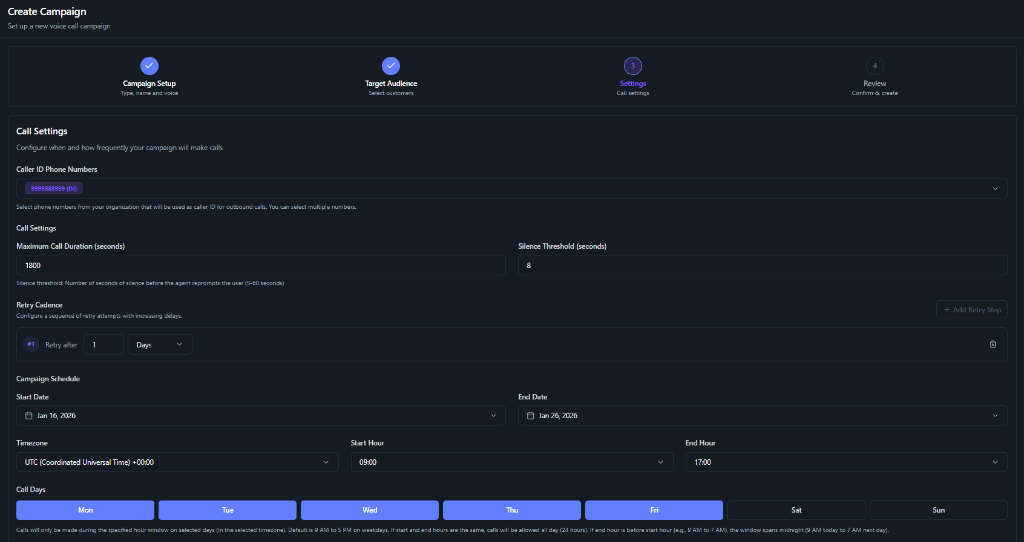
* **Caller ID**: Select the phone number(s) from your organization that will be displayed as the caller ID for the outbound calls. You can select multiple numbers if available.
### Call Settings
* **Maximum Call Duration**: The maximum time (in seconds) the call can last before automatically terminating (e.g., 1800 seconds).
* **Silence Threshold**: The number of seconds of silence to wait before the agent reprompts the user (e.g., 8 seconds).
### Retry Cadence
Configure a sequence of retry attempts with increasing delays.
* **Retry Steps**: Add steps to retry the call if it wasn't connected. For example, "Retry after 1 Day". You can add multiple retry steps.
### Campaign Schedule
Define the schedule for your campaign.
* **Start Date** & **End Date**: The date range during which the campaign will be active.
* **Timezone**: Select the timezone for your start and end hours.
* **Start Hour** & **End Hour**: The daily time window during which calls will be made (e.g., 09:00 to 17:00).
* **Call Days**: The specific days of the week when calls are allowed (e.g., Mon-Fri).
## 4. Review
Review your campaign settings, audience, and configuration. Once you are satisfied with the details, click **Create Campaign** to launch or schedule it.
### Caller ID Phone Numbers
* **Caller ID**: Select the phone number(s) from your organization that will be displayed as the caller ID for the outbound calls. You can select multiple numbers if available.
### Call Settings
* **Maximum Call Duration**: The maximum time (in seconds) the call can last before automatically terminating (e.g., 1800 seconds).
* **Silence Threshold**: The number of seconds of silence to wait before the agent reprompts the user (e.g., 8 seconds).
### Retry Cadence
Configure a sequence of retry attempts with increasing delays.
* **Retry Steps**: Add steps to retry the call if it wasn't connected. For example, "Retry after 1 Day". You can add multiple retry steps.
### Campaign Schedule
Define the schedule for your campaign.
* **Start Date** & **End Date**: The date range during which the campaign will be active.
* **Timezone**: Select the timezone for your start and end hours.
* **Start Hour** & **End Hour**: The daily time window during which calls will be made (e.g., 09:00 to 17:00).
* **Call Days**: The specific days of the week when calls are allowed (e.g., Mon-Fri).
## 4. Review
Review your campaign settings, audience, and configuration. Once you are satisfied with the details, click **Create Campaign** to launch or schedule it.